> ## Documentation Index
> Fetch the complete documentation index at: https://docs.flipt.io/llms.txt
> Use this file to discover all available pages before exploring further.
# Using Merge Proposals
> How to use merge proposals in Flipt v2
This guide will show you how to use merge proposals in Flipt v2.
This functionality is only available in Flipt v2 Pro. [Learn
more](/v2/licensing) about our commercial license or purchase a
[monthly](https://getflipt.co/pro/monthly) or
[annual](https://getflipt.co/pro/annual) license.
## Prerequisites
* [Flipt v2](/v2/quickstart)
* An understanding of [Flipt v2 Branching](/v2/guides/user/environments/branches)
* A Flipt v2 environment configured with [Git Sync](/v2/guides/operations/environments/git-sync) and [Git SCM](/v2/guides/operations/environments/git-scm)
* A Flipt v2 Pro license or trial license
Flipt v2 merge proposals are supported by most of the major Git providers
including GitHub, GitLab, Bitbucket, Gitea, and Azure DevOps.
## Using Merge Proposals
Flipt v2 allows you to create merge proposals for your environments. This is useful if you want to review and approve changes to your environments before they are merged into the source environment.
### Creating a Merge Proposal
To create a merge proposal you must first create a branch. See the [Branching](/v2/guides/user/environments/branches) guide for more information on how to create a branch.
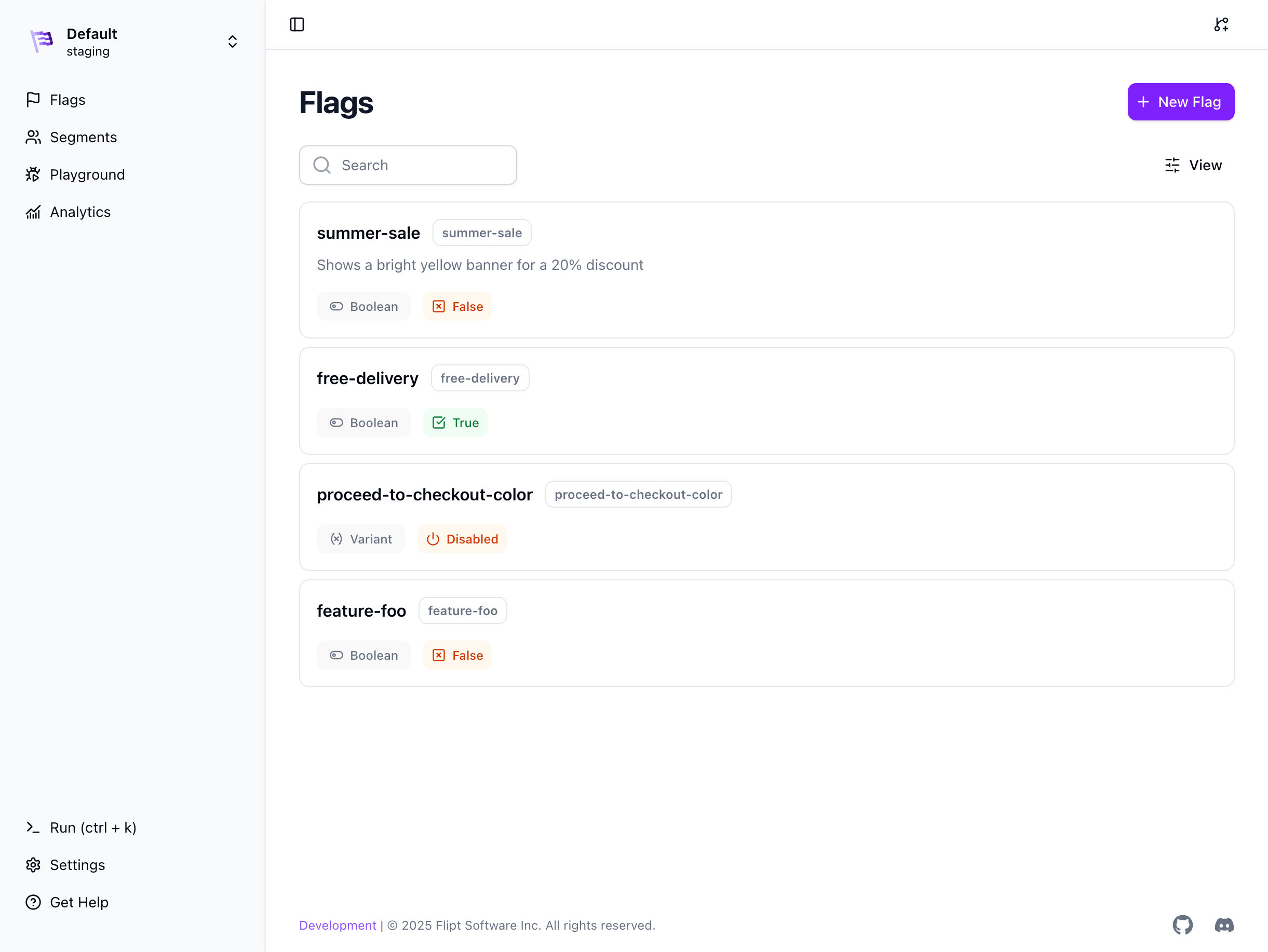
Once you have created a branch and made changes to your environment, you can create a merge proposal by clicking the branch info label in the top right of the Flipt UI.
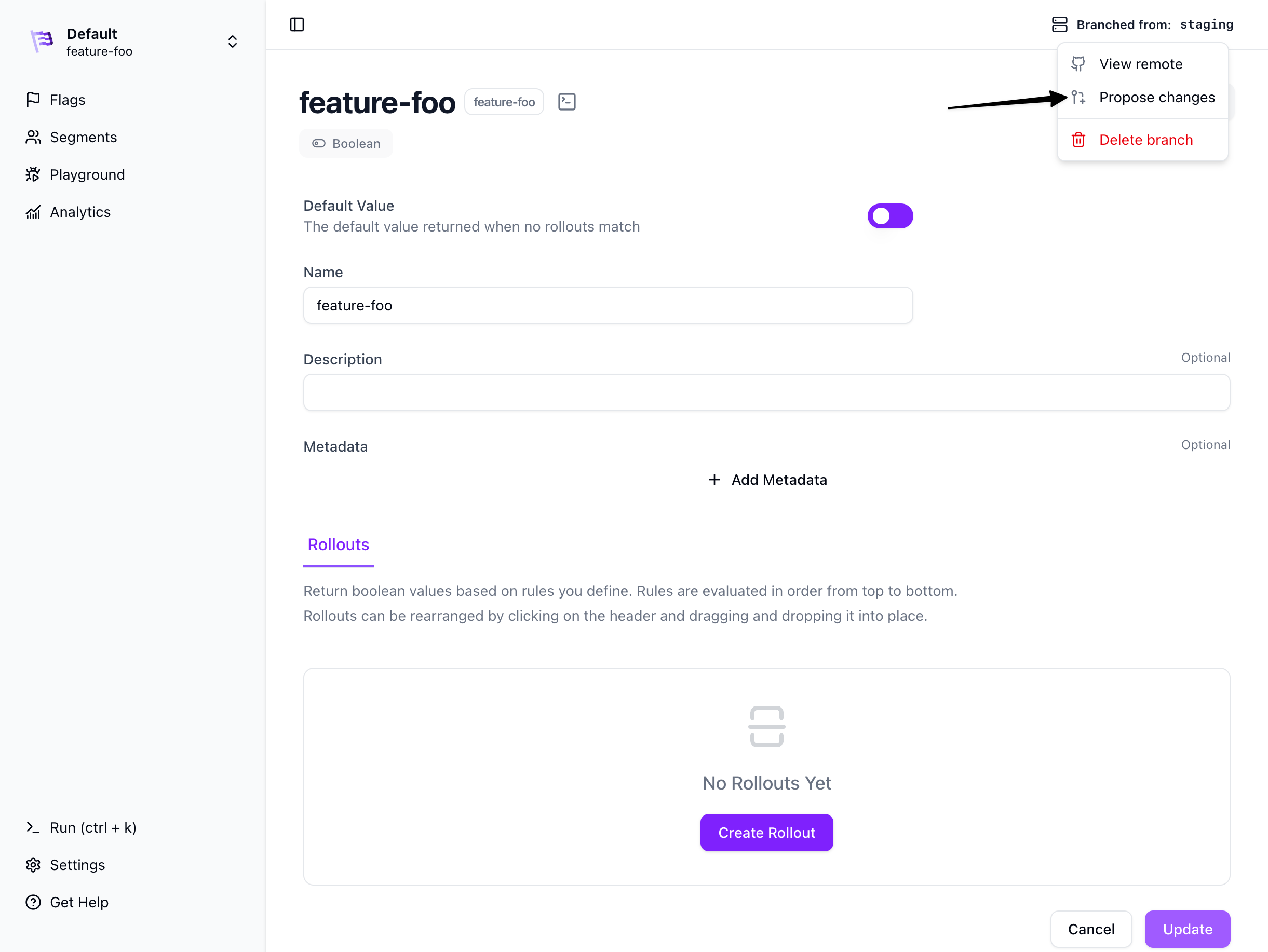 This will bring up a menu allowing you to view the remote branch, propose changes, or delete the branch.
Click the `Propose changes` button to create a merge proposal.
This will bring up a menu allowing you to view the remote branch, propose changes, or delete the branch.
Click the `Propose changes` button to create a merge proposal.
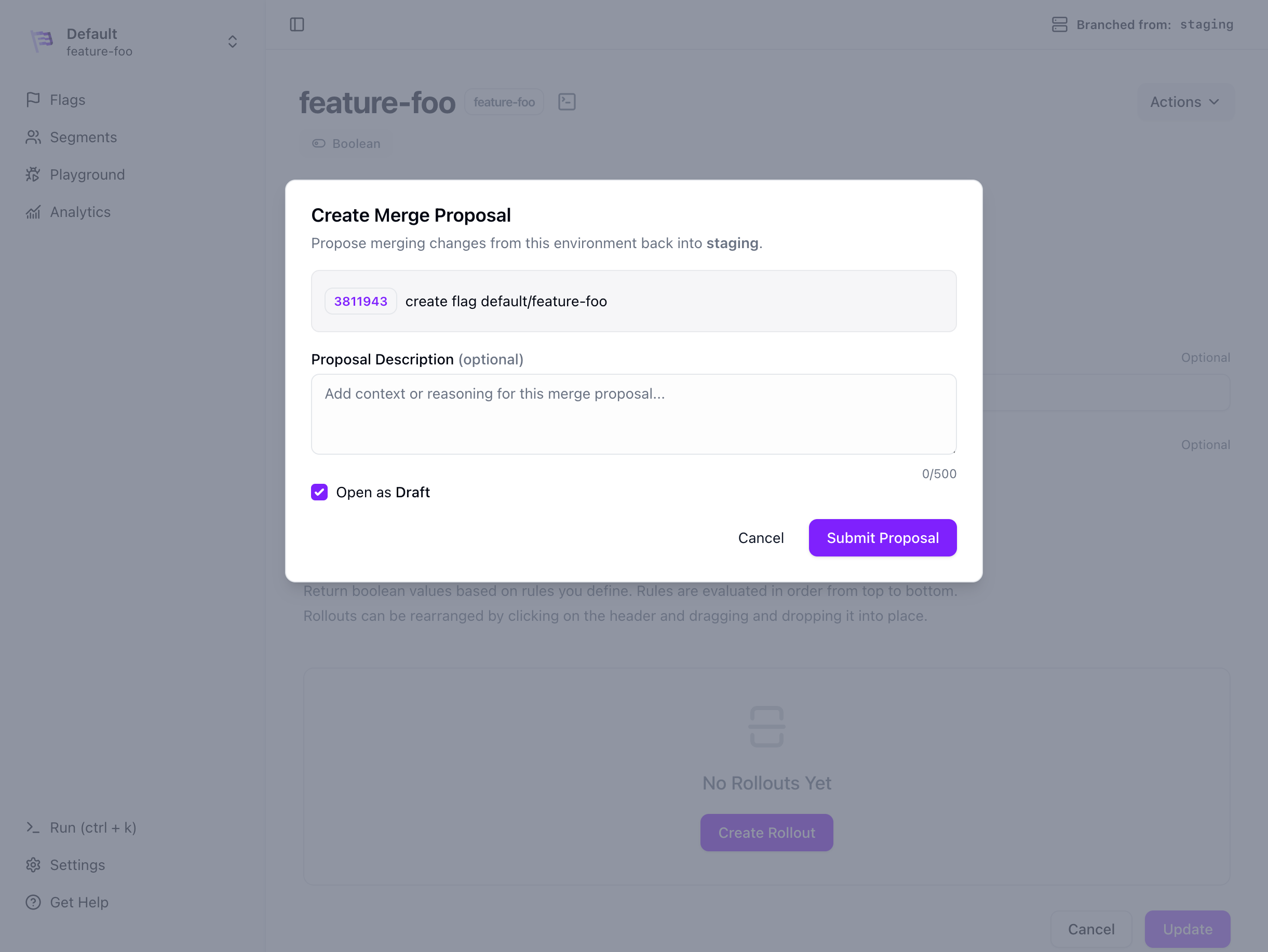 This will bring up a modal allowing you to review the changes you are proposing, add an optional description and optionally open the merge proposal in 'draft' mode for those SCM providers that support it.
If you don't provide a description one will be generated for you based on the
changes you are proposing.
Click the `Submit proposal` button to create a merge proposal.
You should see a success message and the merge proposal will be created.
Refresh the page and click the branch info label again to see the merge proposal in the menu.
This will bring up a modal allowing you to review the changes you are proposing, add an optional description and optionally open the merge proposal in 'draft' mode for those SCM providers that support it.
If you don't provide a description one will be generated for you based on the
changes you are proposing.
Click the `Submit proposal` button to create a merge proposal.
You should see a success message and the merge proposal will be created.
Refresh the page and click the branch info label again to see the merge proposal in the menu.
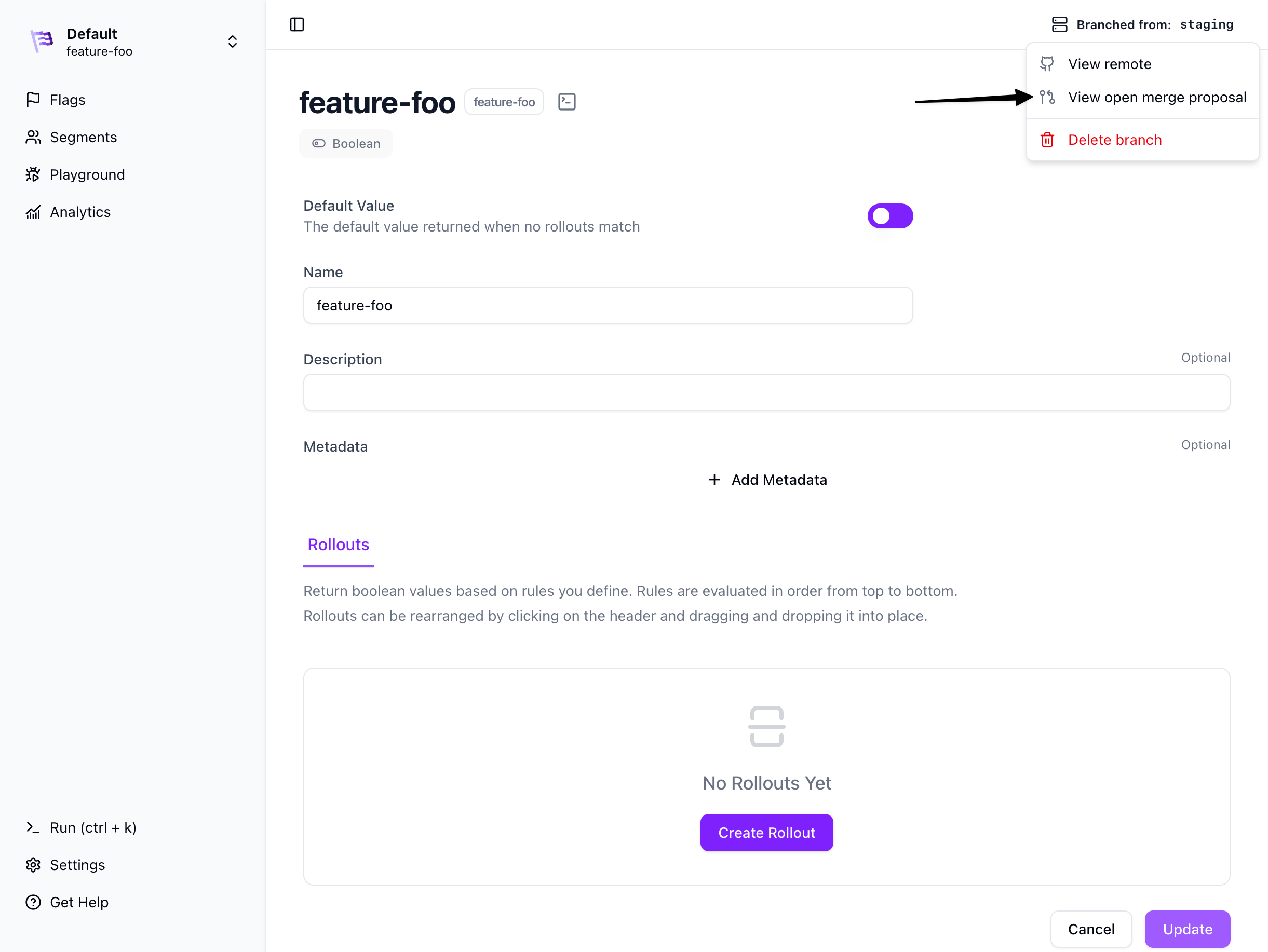 Click the `View open merge proposal` button to view the merge proposal in the SCM provider.
### Review and Merge a Merge Proposal
Reviewing and merging a merge proposal is the same as reviewing and merging a code pull request in your SCM provider.
Once the merge proposal is approved, you can merge it into the source environment by clicking the `Merge` button or similar button in your SCM provider.
Click the `View open merge proposal` button to view the merge proposal in the SCM provider.
### Review and Merge a Merge Proposal
Reviewing and merging a merge proposal is the same as reviewing and merging a code pull request in your SCM provider.
Once the merge proposal is approved, you can merge it into the source environment by clicking the `Merge` button or similar button in your SCM provider.
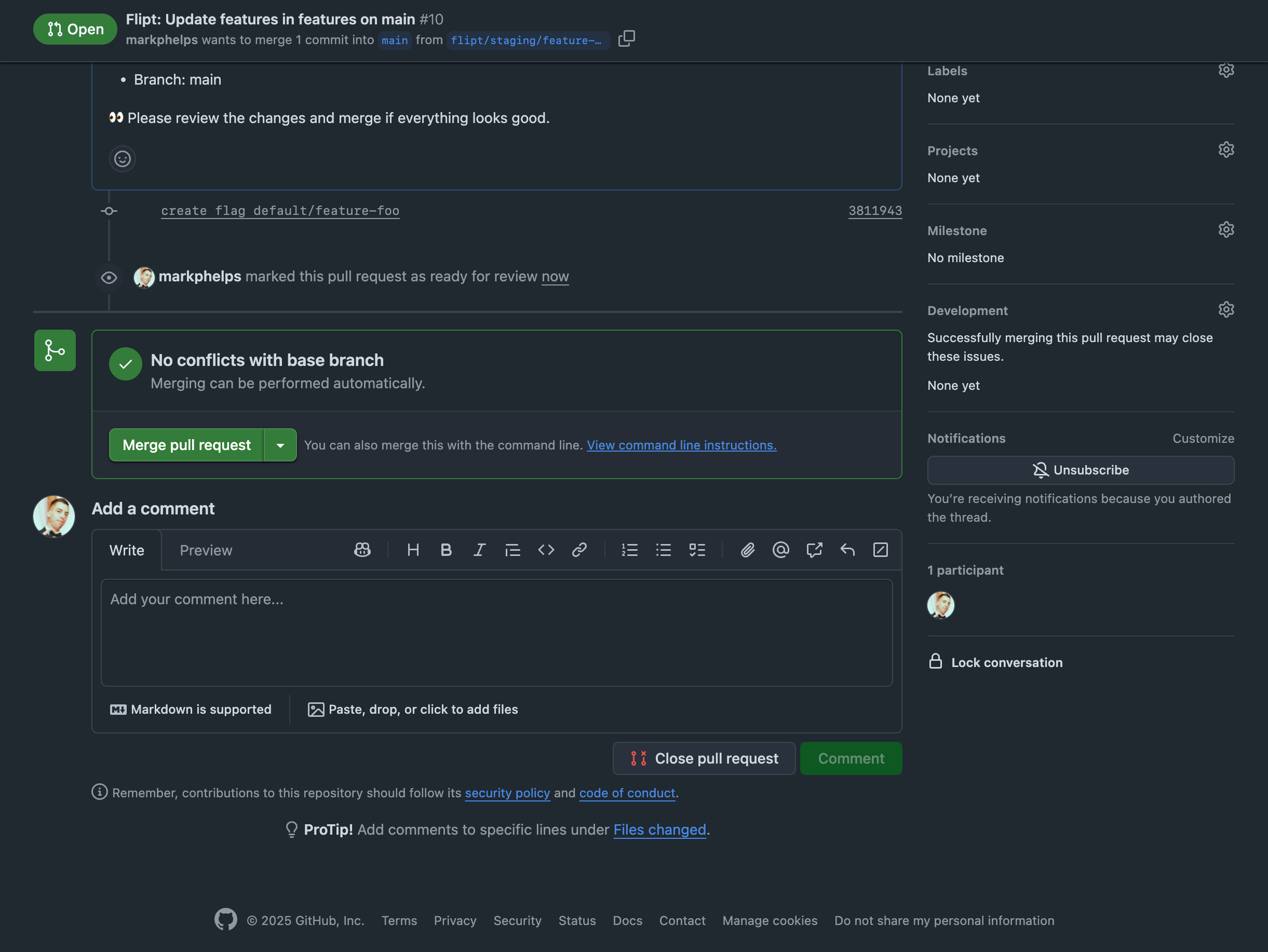 After the merge proposal is merged on the SCM provider, the changes will be synced to the source environment.
Refresh the Flipt v2 UI and you should see the changes in the source environment.
You will need to wait until the merge proposal is synced by the Flipt v2
server you can see the changes. This is entirely dependent on the
`poll_interval` configured in your Flipt configuration file for your Git
environment storage.
After the merge proposal is merged on the SCM provider, the changes will be synced to the source environment.
Refresh the Flipt v2 UI and you should see the changes in the source environment.
You will need to wait until the merge proposal is synced by the Flipt v2
server you can see the changes. This is entirely dependent on the
`poll_interval` configured in your Flipt configuration file for your Git
environment storage.
 ### Close a Merge Proposal
Closing a merge proposal before merging follows the same process as closing a code pull request in your SCM provider.
To close a merge proposal, click the `Close` button or similar button in your SCM provider.
After the merge proposal is closed on the SCM provider, the changes will be reflected in the Flipt v2 UI.
If you also delete the branch on the SCM provider the branch will **not** be
deleted from the Flipt v2 server. This is because the branch still exists in
your configured git environment storage.
### Close a Merge Proposal
Closing a merge proposal before merging follows the same process as closing a code pull request in your SCM provider.
To close a merge proposal, click the `Close` button or similar button in your SCM provider.
After the merge proposal is closed on the SCM provider, the changes will be reflected in the Flipt v2 UI.
If you also delete the branch on the SCM provider the branch will **not** be
deleted from the Flipt v2 server. This is because the branch still exists in
your configured git environment storage.