> ## Documentation Index
> Fetch the complete documentation index at: https://docs.flipt.io/llms.txt
> Use this file to discover all available pages before exploring further.
# Git Sync with GitHub
> Configure Flipt to sync your data to a GitHub repository
This guide will show you how to configure Flipt to sync your data to a Git repository.
## Prerequisites
* [Flipt v2](/v2/quickstart)
* A GitHub Account and a repository to sync to
Flipt v2 supports any Git provider including Gitea, GitLab, Bitbucket, Azure
DevOps, and is not limited to GitHub.
## Using GitHub for Git Sync
This section will walk you through configuring Flipt to sync your flag state to a GitHub repository using a Personal Access Token (PAT) for authentication.
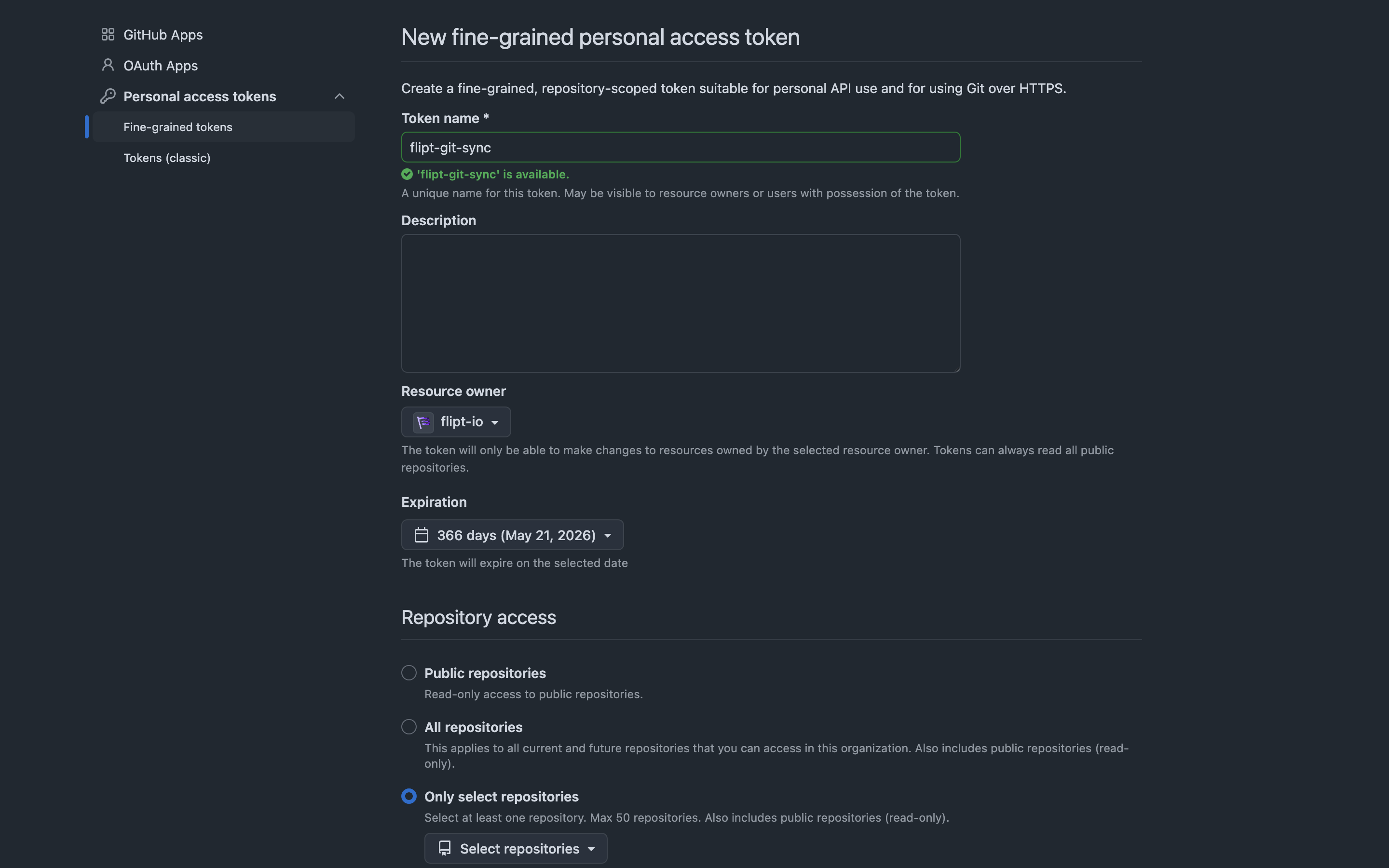
### 1. Create a GitHub Personal Access Token (PAT)
1. Go to [GitHub Settings > Developer settings > Personal access tokens](https://github.com/settings/tokens).
2. Click **"Generate new token"**
3. Give your token a name
4. Select a resource owner (e.g. your organization)
5. Select the repositories you want to give access to (or Select all)
6. Set an expiration date
7. Select the following repository scopes (**required**):
* `repo` read and write access (for private repositories)
* `contents` read and write access
8. Click **"Generate token"** and copy the token. **You will not be able to see it again!**
 ### 2. Add GitHub Credentials
Add your GitHub PAT as a credential in the Flipt configuration file:
```yaml theme={null}
credentials:
github:
type: access_token
access_token:
```
* Replace `` with the token you generated above.
Flipt can use [environment
substitution](/v2/configuration/overview#environment-substitution) for
credentials.
```yaml theme={null}
credentials:
github:
type: access_token
access_token: ${env:GITHUB_TOKEN}
```
### 3. Configure Flipt Storage with GitHub Remote
Edit your Flipt configuration file to add a storage backend that syncs with your GitHub repository:
```yaml theme={null}
storage:
github:
remote: "https://github.com//.git"
branch: "main"
poll_interval: "30s"
credentials: "github"
backend:
type: local
path: "/path/to/local/clone"
```
* Replace `` and `` with your GitHub username and repository name.
* Adjust `path` to where you want Flipt to store the local clone of your repo.
Setting the `backend` to `local` is optional as you can store the state in
memory which is the default behavior.
### 4. Configure Environments
If you want to use multiple environments (e.g., staging, production), reference your storage backend in the environments section and specify a directory for each environment:
```yaml theme={null}
environments:
production:
name: "Production"
storage: "github"
default: true
directory: "production"
staging:
name: "Staging"
storage: "github"
directory: "staging"
```
This mapping between environments and storage backends means that multiple environments can share the same storage backend (e.g. a single GitHub repository).
Each environment that shares the same storage backend must have a unique directory to avoid conflicts.
### 5. Start Flipt
Start or restart your Flipt server with the updated configuration. Flipt will now:
* Clone your GitHub repository to the specified local path
* Periodically sync flag state to and from GitHub
* Commit and push changes when you update flags via the Flipt API or UI
### 6. Troubleshooting
* Ensure your PAT has the correct permissions.
* Make sure the local path is writable by the Flipt process.
* Check Flipt logs for any sync or authentication errors.
## Conclusion
This guide showed how to configure Flipt to sync your flag state to a GitHub repository using a Personal Access Token (PAT) for authentication.
You can now use GitHub to sync your flag state to a GitHub repository and start using Flipt to manage your flags.
If you have any questions or feedback, please reach out to the Flipt team on [Discord](https://discord.gg/flipt) or [GitHub Discussions](https://github.com/flipt-io/flipt/discussions).
***
**References:**
* [Flipt v2 Storage Configuration](/v2/configuration/storage)
* [Flipt v2 Environments Configuration](/v2/configuration/environments)
* [GitHub: Creating a personal access token](https://docs.github.com/en/authentication/keeping-your-account-and-data-secure/creating-a-personal-access-token)
### 2. Add GitHub Credentials
Add your GitHub PAT as a credential in the Flipt configuration file:
```yaml theme={null}
credentials:
github:
type: access_token
access_token:
```
* Replace `` with the token you generated above.
Flipt can use [environment
substitution](/v2/configuration/overview#environment-substitution) for
credentials.
```yaml theme={null}
credentials:
github:
type: access_token
access_token: ${env:GITHUB_TOKEN}
```
### 3. Configure Flipt Storage with GitHub Remote
Edit your Flipt configuration file to add a storage backend that syncs with your GitHub repository:
```yaml theme={null}
storage:
github:
remote: "https://github.com//.git"
branch: "main"
poll_interval: "30s"
credentials: "github"
backend:
type: local
path: "/path/to/local/clone"
```
* Replace `` and `` with your GitHub username and repository name.
* Adjust `path` to where you want Flipt to store the local clone of your repo.
Setting the `backend` to `local` is optional as you can store the state in
memory which is the default behavior.
### 4. Configure Environments
If you want to use multiple environments (e.g., staging, production), reference your storage backend in the environments section and specify a directory for each environment:
```yaml theme={null}
environments:
production:
name: "Production"
storage: "github"
default: true
directory: "production"
staging:
name: "Staging"
storage: "github"
directory: "staging"
```
This mapping between environments and storage backends means that multiple environments can share the same storage backend (e.g. a single GitHub repository).
Each environment that shares the same storage backend must have a unique directory to avoid conflicts.
### 5. Start Flipt
Start or restart your Flipt server with the updated configuration. Flipt will now:
* Clone your GitHub repository to the specified local path
* Periodically sync flag state to and from GitHub
* Commit and push changes when you update flags via the Flipt API or UI
### 6. Troubleshooting
* Ensure your PAT has the correct permissions.
* Make sure the local path is writable by the Flipt process.
* Check Flipt logs for any sync or authentication errors.
## Conclusion
This guide showed how to configure Flipt to sync your flag state to a GitHub repository using a Personal Access Token (PAT) for authentication.
You can now use GitHub to sync your flag state to a GitHub repository and start using Flipt to manage your flags.
If you have any questions or feedback, please reach out to the Flipt team on [Discord](https://discord.gg/flipt) or [GitHub Discussions](https://github.com/flipt-io/flipt/discussions).
***
**References:**
* [Flipt v2 Storage Configuration](/v2/configuration/storage)
* [Flipt v2 Environments Configuration](/v2/configuration/environments)
* [GitHub: Creating a personal access token](https://docs.github.com/en/authentication/keeping-your-account-and-data-secure/creating-a-personal-access-token)